
Make an episode page
Podcast Publisher installs a Podcast Episode Page content type with a Podcast Episode reference field. A page is optional, but it gives listeners a dedicated URL and gives the feed item a link to that page.
Prepare the content type
Before editors create pages, a site builder should add the fields the project needs. The installed content type is a starting point for your site's episode pages.
- Open Structure → Content types → Podcast Episode Page → Manage fields (
/admin/structure/types/manage/podcast_episode_page/fields). - Add fields for the content you want on the page, such as an introduction, a transcript, guest information, or an image. Choose these to suit your project; they are not required by Podcast Publisher.
- Use Manage form display to arrange the fields for editors.
- Use Manage display to choose how those fields appear to listeners.
Keep the installed Podcast Episode reference field: it connects the page to its episode. Audio and feed shownotes belong to the referenced episode; adding page fields does not automatically put their contents into the RSS feed.
Show the episode selector
On a fresh site, the page form may omit the Podcast Episode field even though the field is installed. A site builder can expose it at Structure → Content types → Podcast Episode Page → Manage form display (/admin/structure/types/manage/podcast_episode_page/form-display). Move Podcast Episode into the form, choose an autocomplete widget, and save the display. Keep the field required.
Create the page
- Open Content → Add content → Podcast Episode Page (
/node/add/podcast_episode_page). - Enter a title and choose the matching episode in Podcast Episode. The autocomplete selection includes the episode ID.
- Fill in the additional fields configured for your project.
- Leave Published checked when the page should be public, then save it.
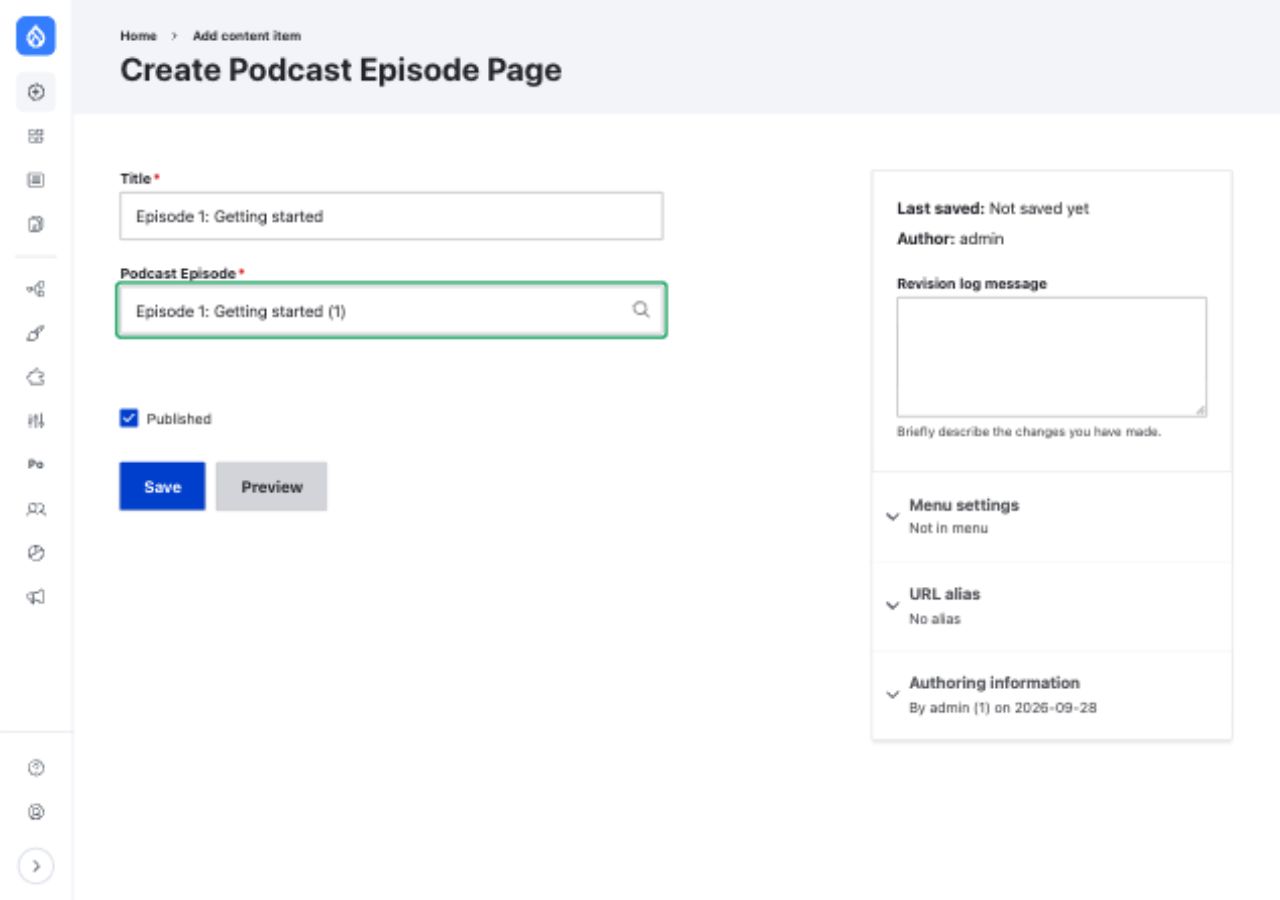
This example shows the basic form with the Podcast Episode selector enabled. Your project's additional fields will also appear here.
After a page is linked, the episode's feed item uses the page URL in its <link> element. Without one, the feed falls back to the site homepage. The audio enclosure still points to the episode's uploaded file or its analytics tracking URL.