
Analytics
Podcast Publisher Analytics is an optional module labeled Alpha in Drupal's podcast menu. It records download intents for episode audio and adds a per-podcast report. It is not a listener count or a measure of how much audio someone played.
Download intent records are stored in your Drupal database, and location lookup uses a local GeoLite2 database. You manage this data as part of your own site, including its access, backups, and retention.
1. Install the GeoLite2 City database
The analytics module checks for this exact file when it is enabled:
web/libraries/geolite2/GeoLite2-City.mmdb
If your web root is not web, use libraries/geolite2/GeoLite2-City.mmdb inside your web root. Without the file, Drupal refuses to enable the module with the message GeoLite2 City Database must be downloaded to the libraries folder.
The GeoLite2 data is published by MaxMind under the GeoLite2 End User License Agreement. Check that your use complies with it.
Option A: Composer
Add a package repository for the database to your project's composer.json. Composer installs it as a Drupal library and extracts it to the path above, provided your installer-paths map type:drupal-library to web/libraries/{$name}, as the drupal/recommended-project template does.
"repositories": [
    {
        "type": "package",
        "package": {
            "name": "podcast-publisher-analytics/geolite2",
            "version": "1.0.0",
            "type": "drupal-library",
            "dist": {
                "url": "https://cdn.jsdelivr.net/npm/geolite2-city@latest/GeoLite2-City.mmdb.gz",
                "type": "gzip"
            }
        }
    }
]
Keep your existing repositories, such as https://packages.drupal.org/8, in the same list. Then run:
composer require podcast-publisher-analytics/geolite2
Option B: Manual download
Download the GeoLite2 City database in binary .mmdb format, either from your MaxMind account or from the mirror used above. Then place it in the libraries directory:
mkdir -p web/libraries/geolite2
curl -L https://cdn.jsdelivr.net/npm/geolite2-city@latest/GeoLite2-City.mmdb.gz | gunzip > web/libraries/geolite2/GeoLite2-City.mmdb
A download from MaxMind arrives as a .tar.gz archive. Extract it and copy only GeoLite2-City.mmdb into the directory.
Keep it current
MaxMind updates GeoLite2 regularly. To refresh the database, replace the file using the same method you installed it with. The module opens the file each time cron processes the tracking queue, so no cache clear is needed.
The database is used for location lookup. A private development IP may have no result; the module logs that lookup error while still storing the download intent.
2. Enable the optional module
Use Extend in Drupal or run:
drush en podcast_publisher_analytics
The main podcast_publisher module must already be enabled. Enabling analytics alone does not switch the feed's audio URLs to tracked URLs.
3. Track feed audio URLs
- Open Structure → Views → Podcast Feed (
/admin/structure/views/view/podcast_feed). - Select the Feed display.
- Under Fields, open Podcast Episode: Audio File. Choose the field that provides the enclosure URL, not the separate Mimetype or Filelength fields.
- Set Formatter to Download Tracker URL. Leave Source as
feedunless you use another source label. - Click Apply, then Save the View.
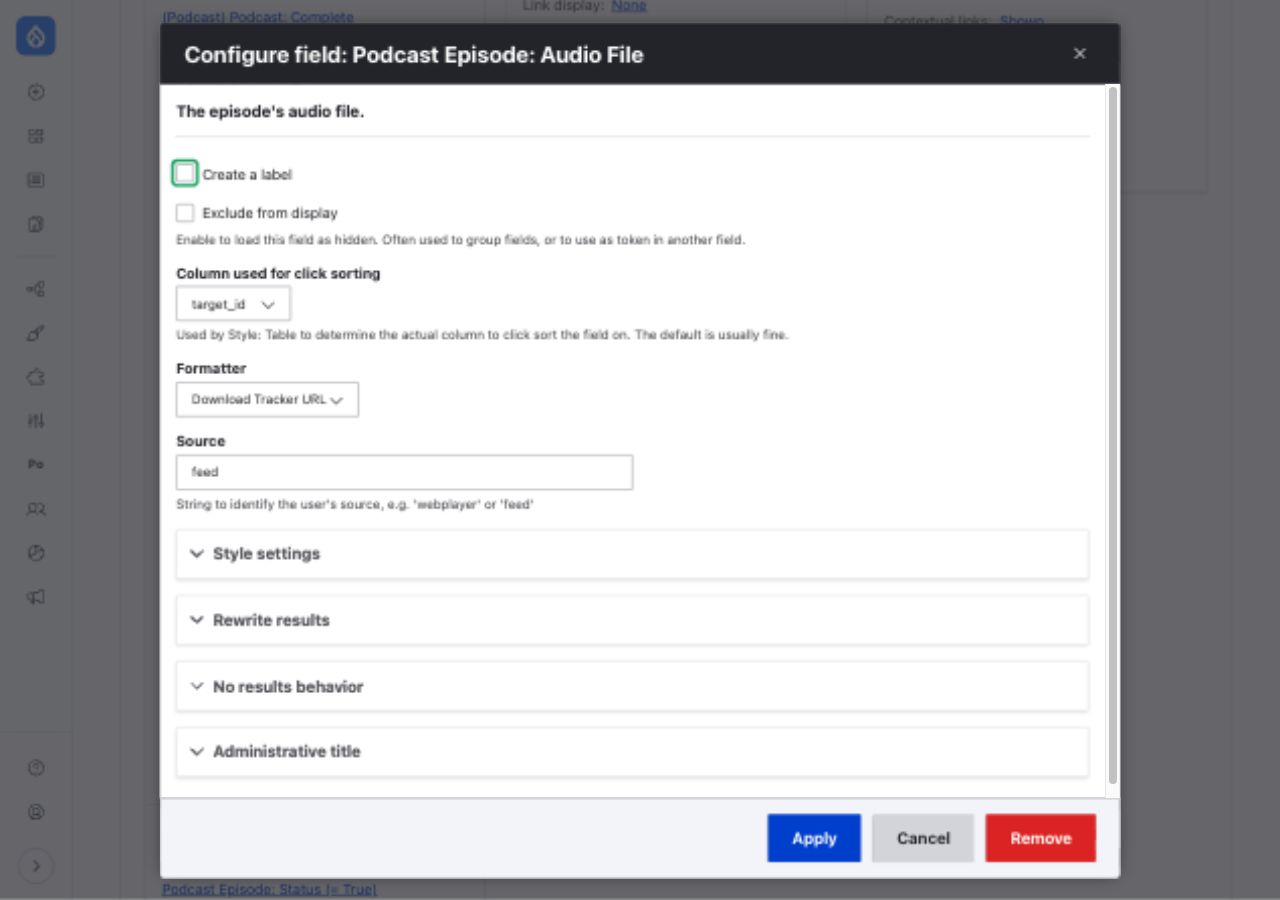
The formatter replaces the enclosure's direct file URL with a tracking URL.
Open a podcast feed and inspect an episode's <enclosure> URL. A tracked URL begins with your site's domain followed by /podcast-publisher/feed/. The URL redirects to the audio file when requested. If it still points directly to /sites/default/files/, check that you edited and saved the Feed display's audio URL field.
4. Process requests and read the report
The tracking endpoint queues requests. Run Drupal cron regularly so its podcast_download_intent_tracker queue worker processes them. The report is at Podcasts → your podcast → Analytics, with a path like /admin/content/podcast/{podcast_id}/analytics. Viewing it requires Administer podcast episode settings permission.
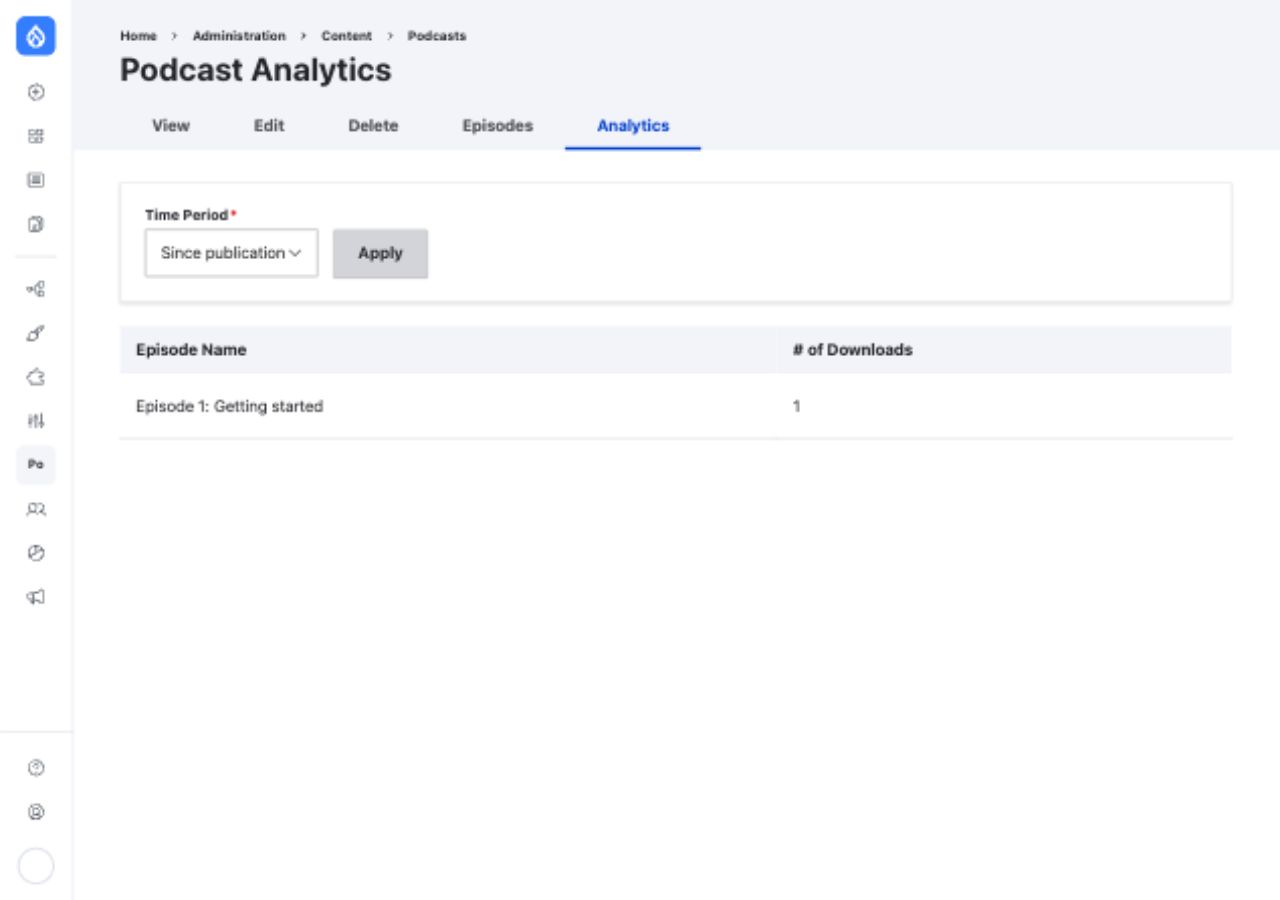
The report groups counts by episode and offers Since publication, Today, Last 7 days, Last 30 days, and Last 90 days filters.
For a local check, request the tracked enclosure URL with GET, run cron, and reload the report. A normal browser or podcast client request is useful for this check; recognized bots are excluded.
What the number means
- A
HEADrequest does not enter the tracking queue. - Known bots are excluded from the report.
- Repeated requests from the same IP address and user agent for the same episode file are counted at most once within 24 hours.
- A full file request counts. Partial byte-range requests count after roughly one minute of audio has been requested, with the module's special handling for a
0-1byte request from Apple's CoreMedia framework. - Cron rehashes older requester identifiers as part of the module's privacy handling.
The report counts qualifying requests to tracked URLs. Direct file links, cached downloads served without reaching Drupal, and listening behavior after a redirect are outside what this module measures. If a count remains at zero, use the analytics checks.