
Add an episode
Open Podcasts → your podcast → Episodes → Add podcast episode. The episode form is also at /podcast-episode/add. Starting from a podcast's episode list selects that podcast and suggests the next episode number.
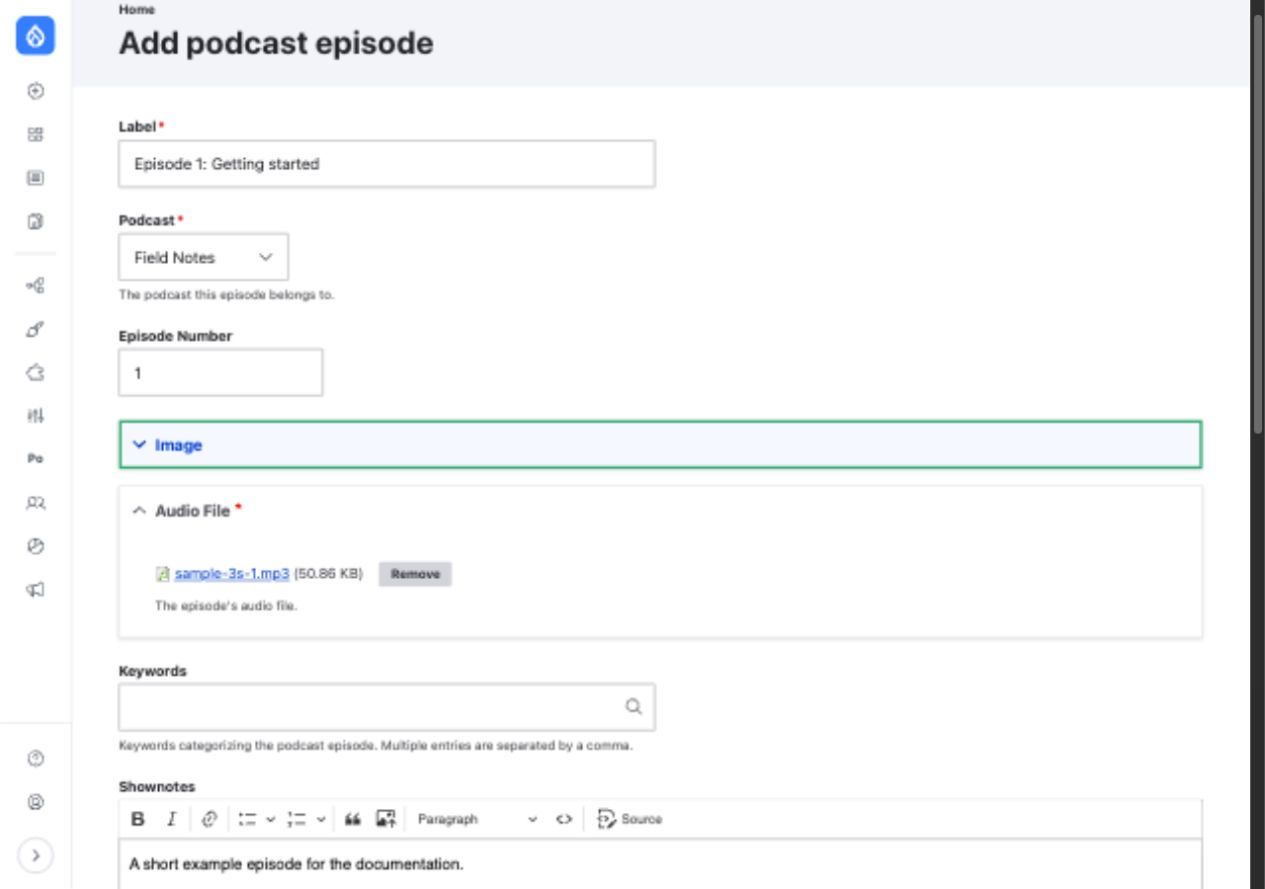
The podcast selection and suggested number came from the podcast's episode list.
Complete the episode
| Field | What to enter |
|---|---|
| Label | Episode title. Required. |
| Podcast | The show this episode belongs to. Required. |
| Audio File | The episode recording. Required; the form accepts mp3, wav, and aac extensions. |
| Type | Full, Trailer, or Bonus. Required; Full is selected by default. |
| Episode Number | Optional number; the form suggests the next number when opened from a podcast. |
You can also upload an episode Image, enter comma-separated Keywords, write Shownotes, mark the episode Explicit, and add feed Author references. Drupal calculates the audio Duration when the episode is saved.
The allowed upload size shown on the form depends on your Drupal and server configuration. There is no fixed module-wide 100 MB limit to rely on.
Leave Published checked to include the episode in a published podcast's feed. Uncheck it to keep the episode out of the feed while you prepare it. Click Save when ready.
Give the episode its own page
The episode entity has a Drupal page, but the feed's item link is intended to point to a linked Podcast Episode Page node. Create an episode page if you want a dedicated public page for shownotes or other site content. Without a linked page, the current release's feed item link falls back to the site homepage.
Next, check and share the feed.